
Free Download for Premium Members
Today we bring you EricLenz – Bloom Plugin for Final Cut Pro with free download links. Remember, on this website you will find lots of premium resources like Courses, Motion Graphics Templates, Photoshop Actions, Fonts, Luts, Sounds, Mockups, VFX, Overlays, Plugins, Presets, Bundles and much more. XTemplates is a handy audiovisual content provider that helps beginner video editors and graphic designers as well as freelancers who can’t afford high-cost editing assets. Note that Guest Users can download without limits from Sources like Envato and MotionArray, on the other hand Premium Members can download without limits from 65+ Sources like Tropic Colour, Acidbite, Boom Library, Blindusk, Triune Digital, MotionVFX and more.
You can join the club by purchasing an XT MembershipPlease check the Payment Plans page to know everything about Our Memberships.
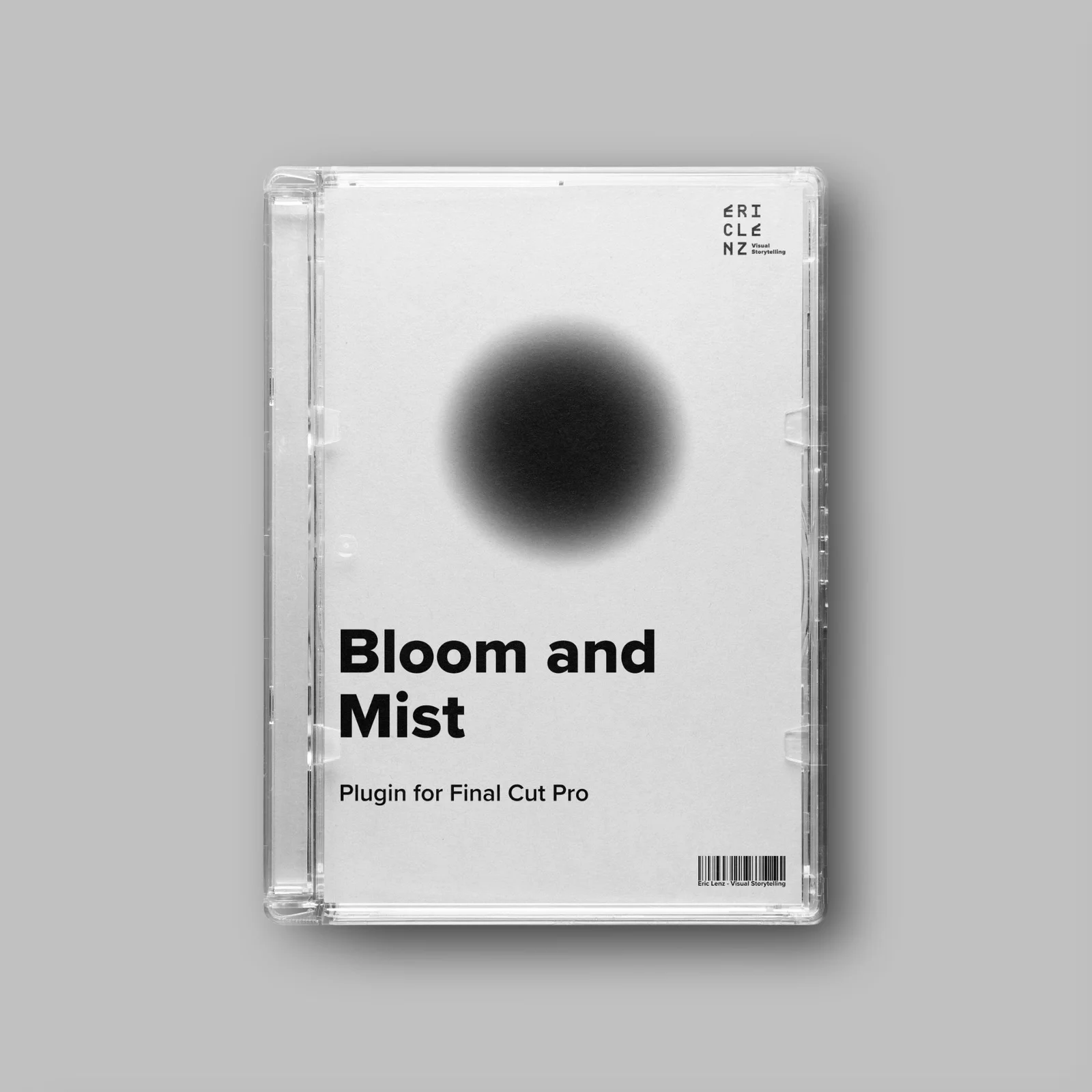
Achieving a good-looking blooming of the highlights in post is not a simple task. But that has just changed. Don’t waste your money on Pro Mist filters, don’t waste your time with hyper-complex plugins. This plugin for Final Cut Pro will create an aesthetic bloom effect, no matter what you throw at it.
Threshold: Lets you select which brightness level is considered a light source. The numbers behind the slider correspond to the IRE values. A value of 70 also means highlights of around 70 IRE are considered as sources of emission. Drag the Slider to the right to only include the brightest highlights. Drag the slider to the right to include dimmer highlights.
Source Limiter: Lets you define whether highlights become brighter or remain where they are. Drag the slider to the right to keel highlights as they are, drag the slider to the left to let the bloom bleed into itself and amplify the light source.
Strength: Select your desired filter strength from a convenient drop down menu. The options are 1/8, 1/4, 1/2 and 1/1.
Impact: Allows you to increase or decrease the projection of the blooming at the current strength. Dragging the slider to the right will increase the effect, dragging the slider to the left will decrease the effect.
Pollution: Mist filters not only bloom highlights, but they also reduce contrast, sharpness and make your shadows look foggy. The pollution slider controls exactly that. By default, the appropriate amount of pollution for the strength you selected will be applied. If you want more pollution, drag the slider to the right. If you want less, drag the slider to the left.
Hue: Pro Mist filters, especially the most popular filters create a warm tint in the highlights. The Hue slider allows you to decide whether the warmth leans more towards red or towards yellow. If you want it more yellow, drag it to the left. If you want it more red, drag it to the right.(*)
Saturation: With the tins slider, you control how much your highlights will be colorised. By default, the appropriate amount will be applied. If you want more colour, drag the slider to the right, if you want less or no colour at all, drag the slider to the left.
You may be interested in these..


Disclaimer
We don't own these files* All files are hosted on third party websites. Everything is obtained through forums, chat servers for leaked content or other websites like this. Please note that this doesn't grow on trees so if something really works for you please support to the real author and you will be able to use this for commersial porpuses and sell your work! We don't sell these files* XTemplates isn't done by magic either. Our Premium Members make it possible to keep the website up and running. We simply provide you access to test these high-end assets before you finally purchase a license.
if you'are the author, please go to the DMCA page and request removal.
Finally, thank you for taking the time to read this.



 Explore more